
First launch
This page describes what to expect the first time you open RunContainer.
Pre-release
Screens and wording in the application may differ from the descriptions here while RunContainer is in development.
Before you open RunContainer
- Close any installers you were running.
- Make sure you have the installer (
.exe) for at least one application you'd like to try. A small, familiar application is a good first choice. - Check Prerequisites.
What you'll see
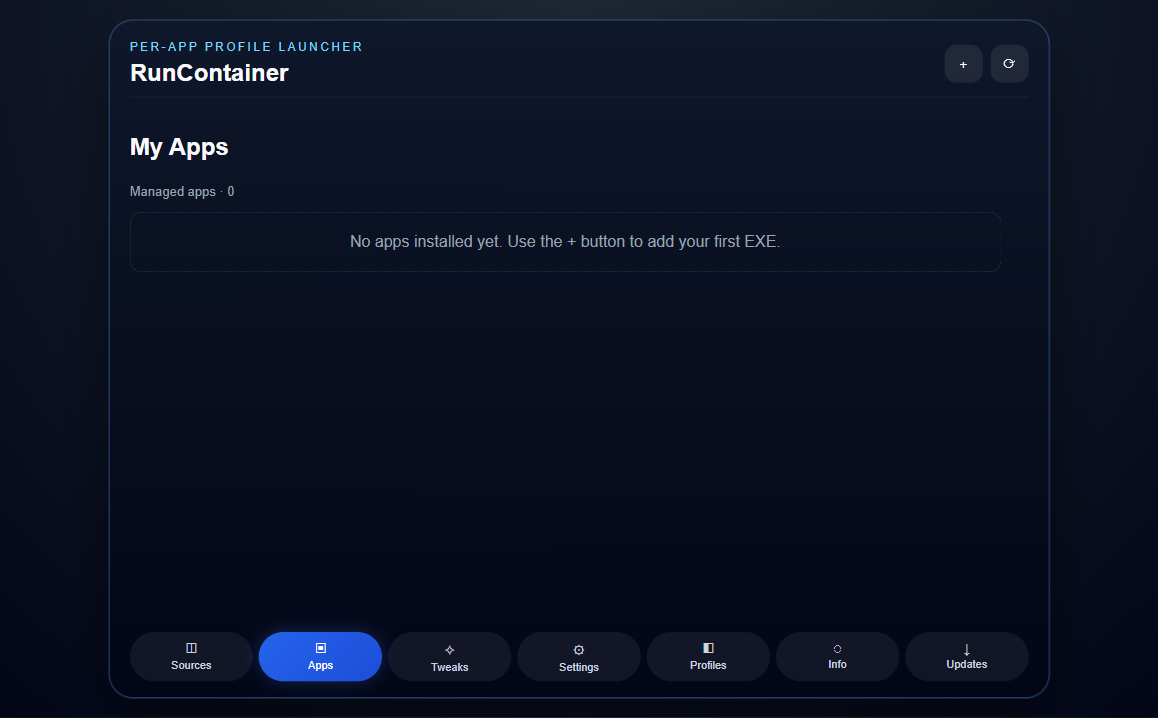
On first launch the Apps tab shows My Apps with no applications installed yet. The message reads "No apps installed yet. Use the + button to add your first EXE."
Good first habits
- Start with one application so you can see how the workflow feels before you add more.
- Duplicate before experimenting. Use Duplicate on an app to make a separate copy with its own data, and keep your working copy untouched.
Next step
Follow the Walkthrough to go from an empty RunContainer to a running application.