
Settings and profiles
RunContainer's main window has seven tabs: Sources, Apps, Tweaks, Settings, Profiles, Info and Updates.
| Tab | What it's for |
|---|---|
| Sources | Adding applications: import from a URL, or install a local .exe |
| Apps | Your installed applications, with their actions |
| Tweaks | Per-application options: launch arguments, memory limit and CPU limit |
| Settings | How apps are kept apart, where their files live, and RC-Brain's status, results and monitoring switch |
| Profiles | Access presets (default, relaxed or locked), assigned per application |
| Info | What RunContainer is, how it works, and its current limits |
| Updates | The installed version, a check-for-updates button and the release notes feed |
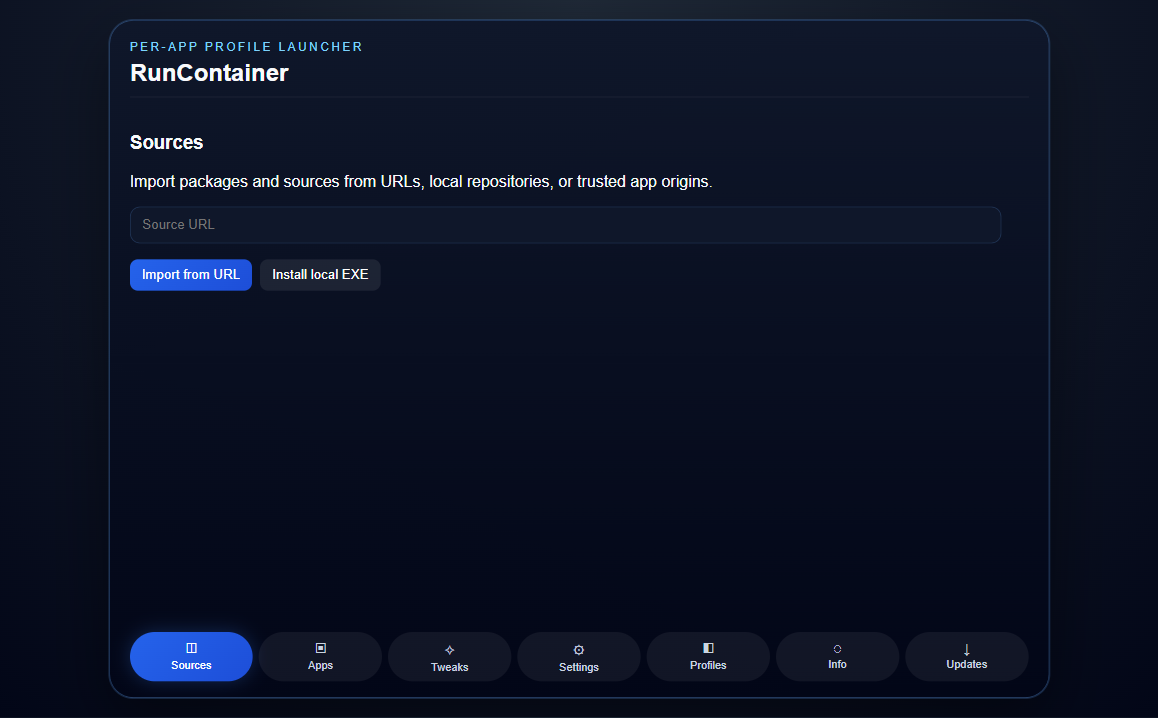
Labels may change
Labels and options may change between releases. The pages in this guide describe the current version.
Tweaks
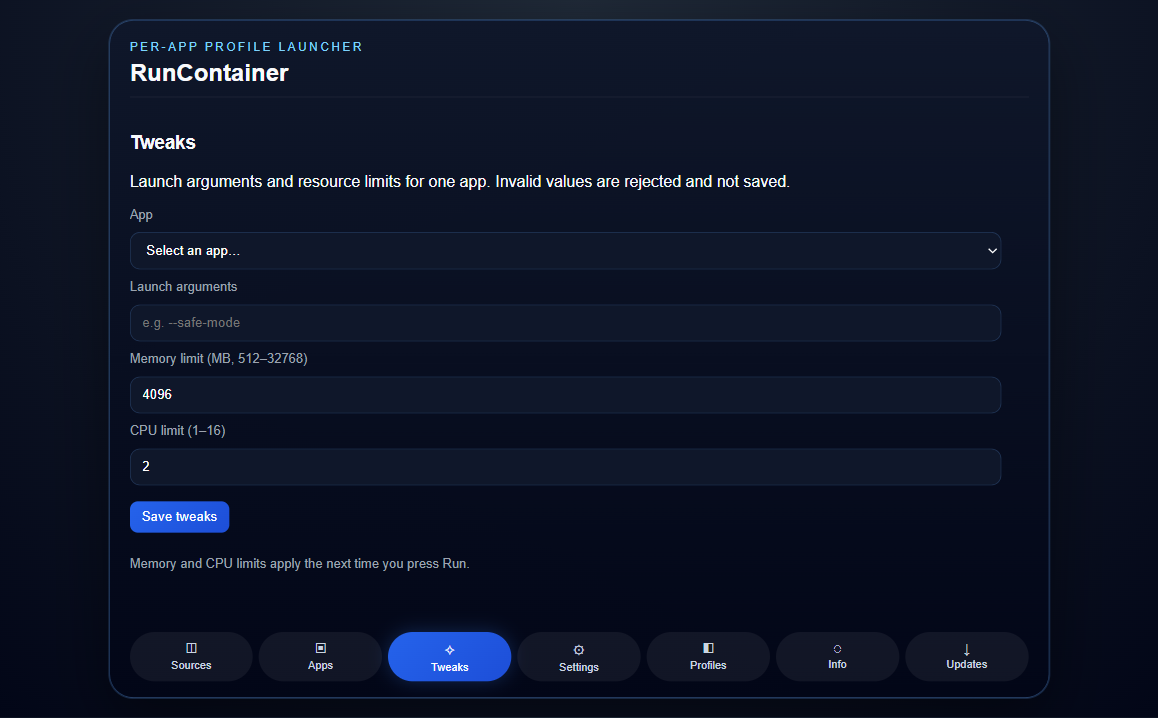
Pick an application in Tweaks to change its options:
- Launch arguments: passed to the app when it starts.
- Memory limit: 512 to 32768 MB.
- CPU limit: 1 to 16.
- Runtime & JIT: what the app actually runs on, and — for managed .NET apps only — how the .NET runtime should balance startup against steady-state speed. Native programs are reported as already compiled code, with no strategy offered. Performance and JIT explains why.
Invalid values are rejected and not saved. Limits apply the next time you press Run. To take an app offline, use the locked profile instead.
Profiles
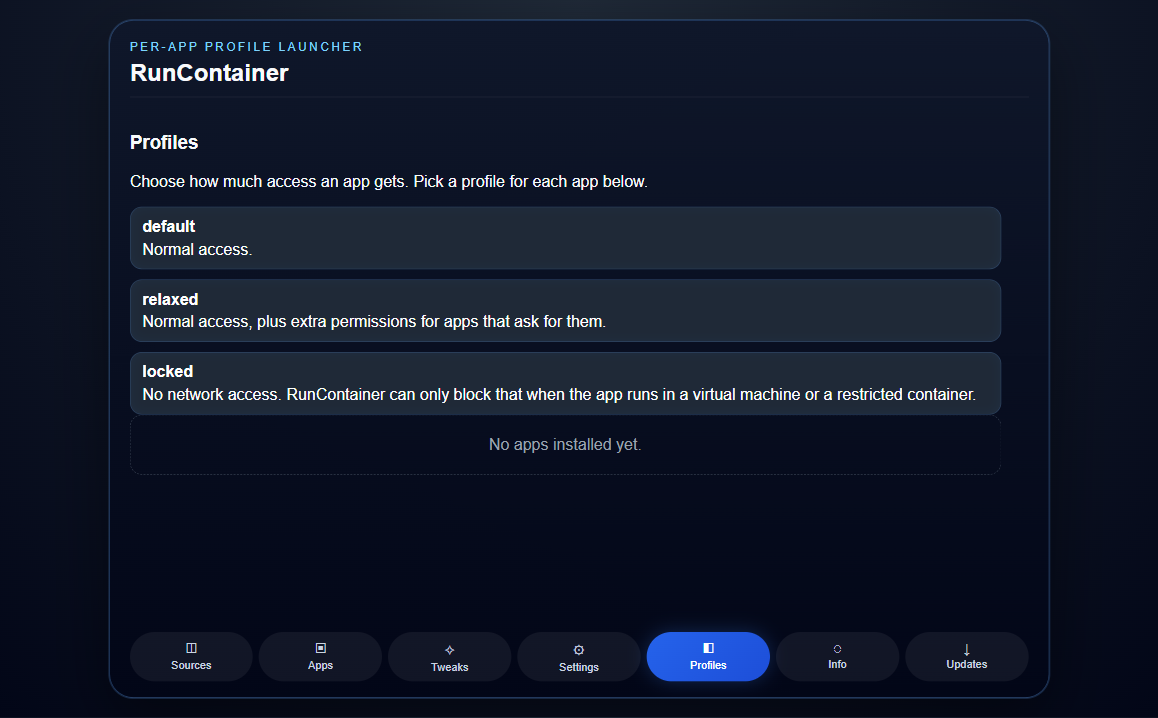
Each profile sets how much access an application gets:
- default: normal access.
- relaxed: normal access, plus extra permissions for apps that ask for them.
- locked: no network access.
A locked profile can only be enforced when the app runs in a virtual machine or a restricted container. On a standard environment, Windows gives ordinary apps network access — the Profiles tab says so for each app instead of pretending the block is in place.
RC-Brain (in Settings)
RC-Brain reports itself in Settings, below the cards about how apps are kept apart:
- whether the model is loaded and monitoring is on;
- its name, parameter count, version and knowledge version;
- the held-out evaluation results that shipped with the model;
- what it may do on its own and what needs your approval;
- the most recent diagnoses, with the chosen action and outcome.
Pause monitoring stops the supervisor until you start it again. Closing RunContainer always stops it: RC-Brain is not a Windows service. If the model is missing or corrupt, Settings says Unavailable and names the reason, and monitoring will not diagnose or repair anything until it is fixed.
→ RC-Brain: RunContainer's own AI model
Info
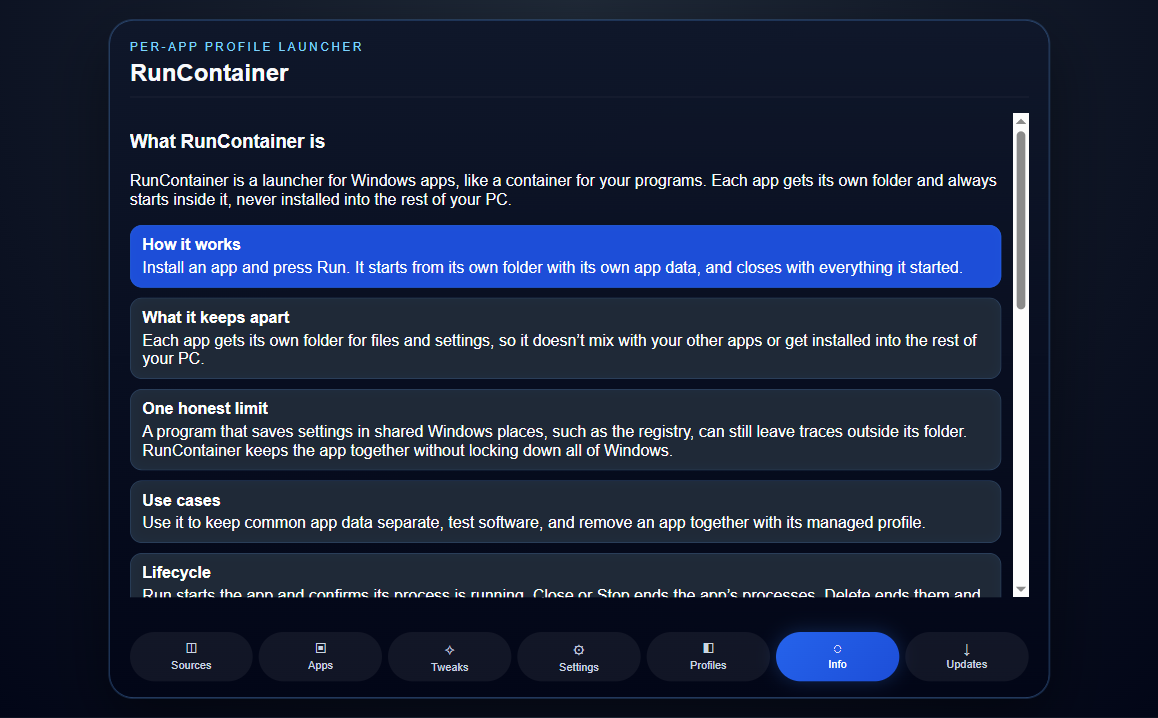
The Info tab explains how RunContainer works, including the one limit worth knowing about: a program that saves settings in shared Windows places can leave traces outside its folder.
Further down the tab, the Support & documentation section links to this documentation and to the Discord server, and both open in your default browser. The same Discord link appears in the beta notice. RunContainer only opens its own project links; any other address is refused.
How apps are kept apart
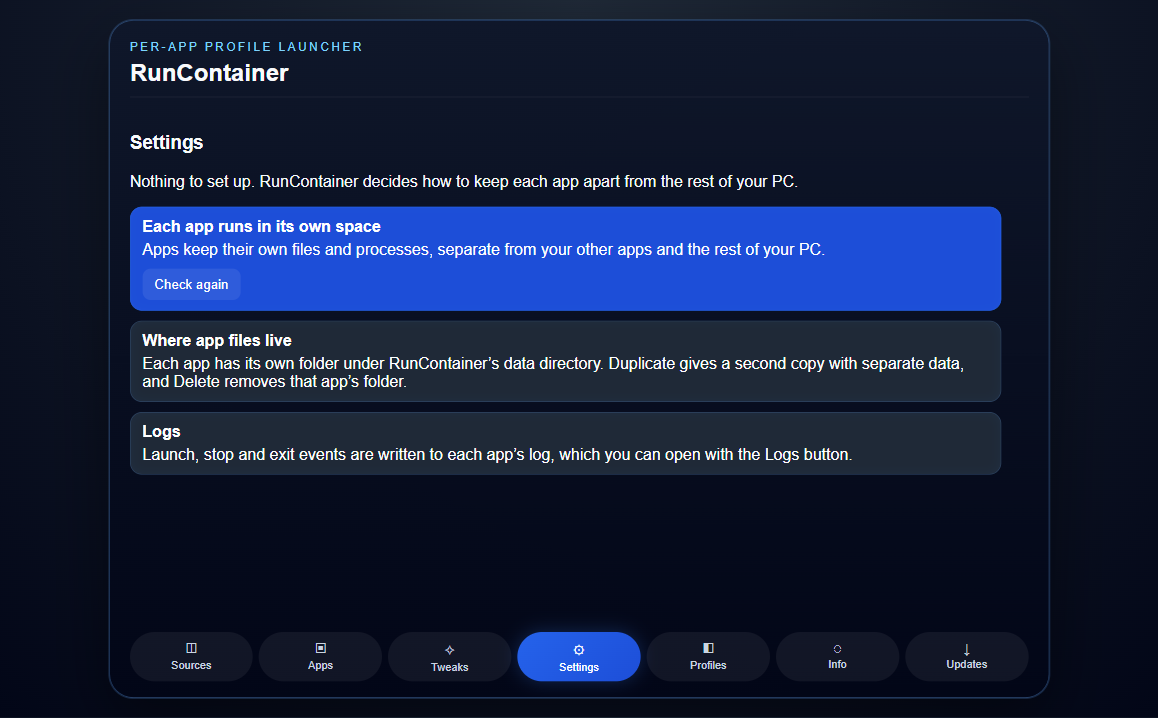
There is nothing to configure. Settings says what RunContainer does for this PC:
- Each app runs in its own space — its own files and processes, memory and CPU limits, and a private folder for its data.
- Where app files live — each app has a folder under RunContainer's data directory. Duplicate gives a second copy with separate data, and Delete removes that folder.
- Logs — launch, stop and exit events, readable from each app's Logs button.
- Performance on this PC — the backend in use, the last launch time and the median of recent launches (measured from Run until containment is confirmed), and how often running apps are checked. It says so plainly when nothing has been measured yet. How the numbers are produced
If a prepared virtual-machine image is already available on the PC, RunContainer uses it automatically for a stronger boundary. Nothing is downloaded, and no Windows licence is included.
Updates
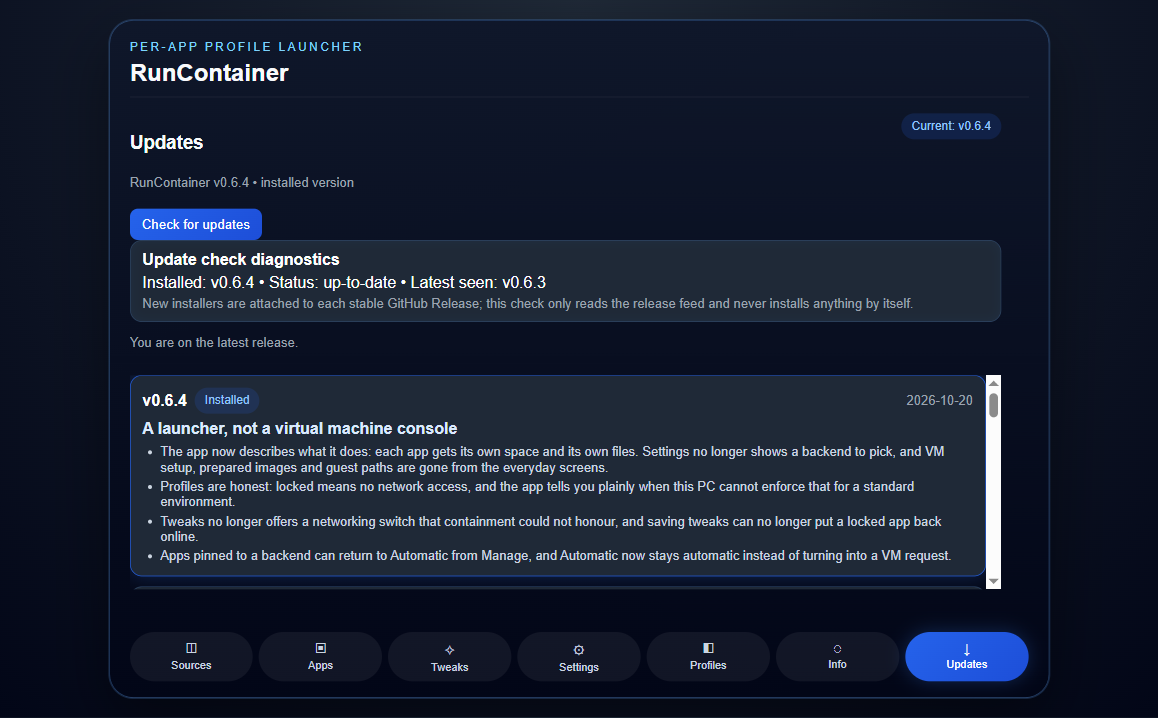
The Updates tab shows the installed version and the release notes for every release. Check for updates reads the latest stable GitHub Release: when a newer version exists, a notice appears at the top of the window with Update…, Remind tomorrow and a dismiss button. Downloads are verified against the published size and checksum before anything runs.
Application settings vs. RunContainer settings
There are two kinds of settings to keep apart:
- An application's own settings (its preferences, sign-ins and recent files) are changed inside the application. They belong to that app's own RunContainer folder, so changing them doesn't affect other apps or your PC.
- RunContainer's settings decide how much access an app gets and how much memory and CPU it may use.