
Installing and managing applications
RunContainer installs each application into its own managed copy, rather than onto your PC directly. The app then runs from that copy.
Before you install
- Get the installer from the official source. RunContainer doesn't check whether an installer is genuine or safe. See Testing unfamiliar software.
- Check compatibility notes. Applications that need drivers, system services or system-wide installation may not work. See Unsupported applications.
- Check the prerequisites. See Prerequisites.
Installing from the Sources tab
The Sources tab has the same two options as the + menu: a Source URL field with Import from URL, and Install local EXE.
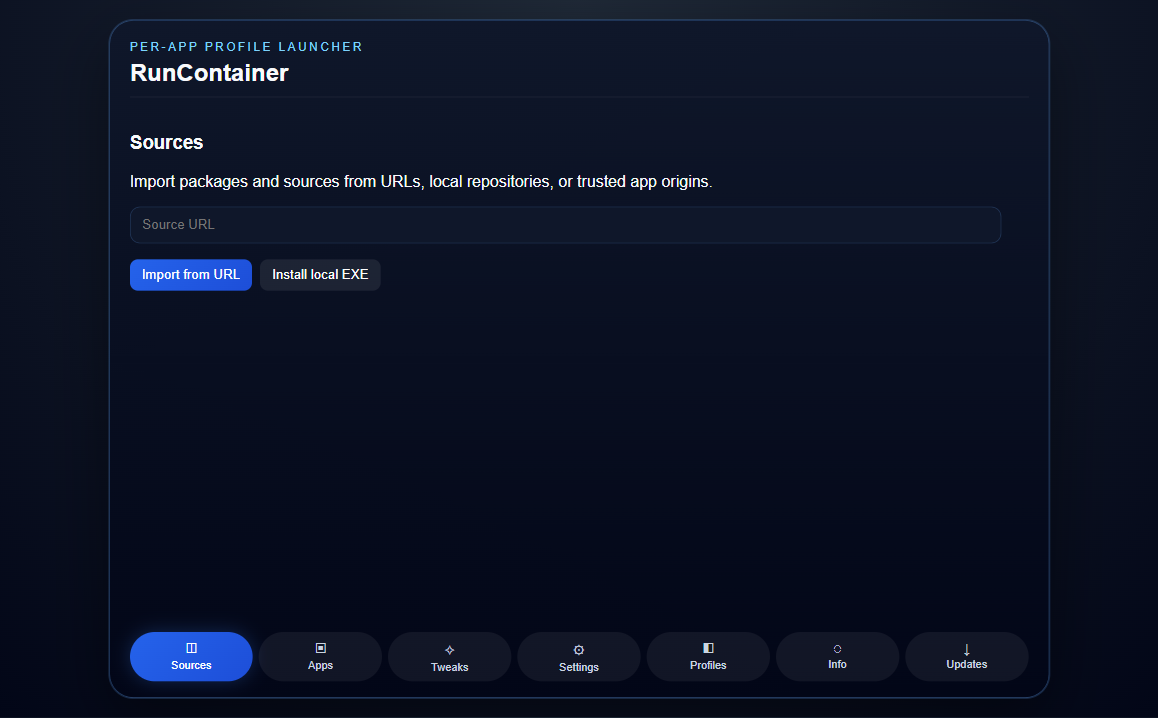
Installing an application from an EXE
- Open the Apps tab (My Apps).
- Press the + button in the top-right corner. A menu opens with Install EXE and Import from URL.
- Choose Install EXE. A file dialog opens, showing
.exefiles. - Select the installer and confirm.
- The Installing into RunContainer window shows three steps: validate the app, create its sandbox, and register it in the launcher. Close it with × or by clicking outside it when the steps are done.
- The app appears in My Apps under Managed apps.
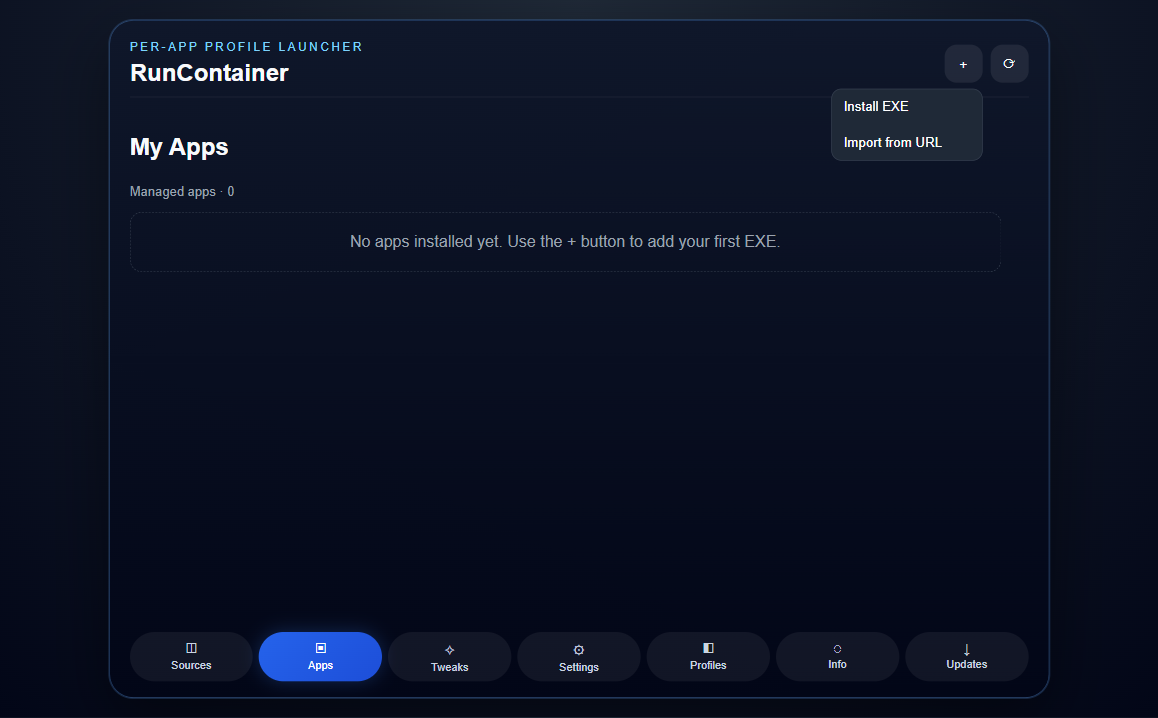
RunContainer checks that the file is an .exe with a valid Windows program header before it copies anything. Files that fail the check aren't installed.
Screens change between releases
The exact steps and labels can change between releases. The screenshots above are from the current build.
Installing from a URL
Choose Import from URL from the same + menu, then enter the address of the installer. Only https:// addresses are accepted. RunContainer downloads the file, then installs it the same way as an EXE you picked yourself.
Running the installer
The app's installer runs inside the app's own environment, not loose on your desktop. It gets the same space and limits as the app itself. Installer prompts to watch for are listed below.
The installer's window is shown inside RunContainer. It is hosted in a second RunContainer window with Stop app, Release window and a way back to the main window; when the installer requires administrator rights, Windows blocks that hosting, so the elevated launcher opens a RunContainer administrator window and hosts the wizard there instead. Apps that run in a virtual machine get the same treatment: the guest display, including any wizard inside it, opens in that window automatically. Hosting is presentation only — it changes where a window appears, not what the app can reach — and Windows can still decline to host a window, in which case RunContainer says so and the window stays on your desktop.
If the installer finishes but the environment needs a reboot, RunContainer tells you. Use Reset on the app, then Run it.
When the app you added is the setup program
Adding an installer as an app is a normal thing to do, and it means the first thing Run does is setup, not the application. RunContainer recognises that case and says so on the app's own line in My Apps, instead of leaving a window that looks frozen while a wizard waits for a click.
It recognises the installers that document their own unattended mode — Inno Setup, NSIS, InstallShield, a WiX Burn bundle, an MSI package and Squirrel — and it treats a name like “Setup”, “Installer” or “Patch” as evidence even when the installer type is unknown. Then one of two honest things happens:
- Unattended setup is offered. The app's line shows Set up in the background. Press it and setup runs inside the same environment the app would run in, without a wizard to click through; RunContainer then looks for the executable setup produced and makes Run start that. Where the installer type is unknown it refuses rather than guessing at switches.
- The wizard is the setup. Its wizard opens in a RunContainer window, and the app's line says plainly that this window is the app's setup, so a long setup is explained rather than looking like an app that never appears.
Setup is observed, not assumed. RunContainer follows the setup process tree to its exit (bounded, and it stops waiting instead of hanging forever), then searches the environment for what setup produced. When it finds something, it records it, says so, and Run starts the installed application from then on. When it finds nothing, it says exactly that rather than claiming success.
If you want the wizard even for an installer that supports unattended setup, the choice is stored per app: setup in the background is offered, never forced.
Installer prompts to watch for
| The installer asks to… | What it may mean |
|---|---|
| Restart Windows | The application may depend on system-level changes that RunContainer can't provide. |
| Install a driver or system service | This kind of application is often unsupported. See Known limitations. |
| Run with administrator rights | Think about why it needs them, especially for software you don't know. |
| Install extra bundled software | Decline offers you didn't ask for, just as you would outside RunContainer. |
Managing installed applications
Each app in My Apps has these actions:
- Manage: see where the app lives, its log, how its window appears, and its access profile. See Settings.
- Run and Close: start the app, or stop it. See Running & stopping.
- Reset: restart the app's environment, keeping its data. See Reset or remove.
- Duplicate: create a separate copy with separate data.
- Export info: export the app's details.
- Logs: view the app's logs.
- Delete: remove the app's folder.
Updating applications
Many applications update themselves. An update applies only to the RunContainer copy of the app. The installed copy on your PC isn't affected, and neither is any other app.
Microsoft Store packages
Some downloads from a vendor's site aren't the application itself. They are a small bridge — a few hundred kilobytes — that asks Windows to install a Microsoft Store package. Windows installs those system-wide into WindowsApps, with a package identity, and does not let any other program redirect that into an app folder: there is nothing for RunContainer to keep separate, and the Store's window is a UWP frame that no RunContainer window can host.
RunContainer recognises such a bridge and refuses it before anything starts, rather than letting the real app install outside its environment. Two options:
- Use the desktop build. The vendor's
.exeor.msidownload is installed into the app's own folder and contained normally. - Use a virtual machine for that environment. With a VM engine selected in Settings, the Store install happens inside the guest OS, on the guest's own screen.
A normal application that merely offers a Store link is not affected; only a small file that exists to hand off to the Store is refused.
Uninstalling applications
To remove an app, use Delete in its entry under My Apps. You can also use the app's own uninstaller inside RunContainer first, then delete the entry.