
Beginner walkthrough
Prefer watching?
Watch this walkthrough instead
New to RunContainer? The official video walks through the interface, installing an application, the per-app profiles and the containment backends — in a few minutes.
To support the project, subscribe to the RunContainer YouTube channel and join the Discord server. Subscribing costs nothing and is the easiest way to help; the Discord is where questions, bug reports and compatibility notes get answered.
This walkthrough covers the basic RunContainer workflow: install an application, run it, and clean up afterwards.
Create an environment
Set up a managed space for an application or a group of related applications.
Install the application
Run the application’s installer inside that environment instead of directly on your PC.
Run it from RunContainer
Launch and stop the application from RunContainer, which keeps track of where it belongs.
Keep or clean up
Keep the environment for everyday use, or reset or remove it when you no longer need it.
Screens change between releases
Button names and screens can change between releases.
1. Install an application
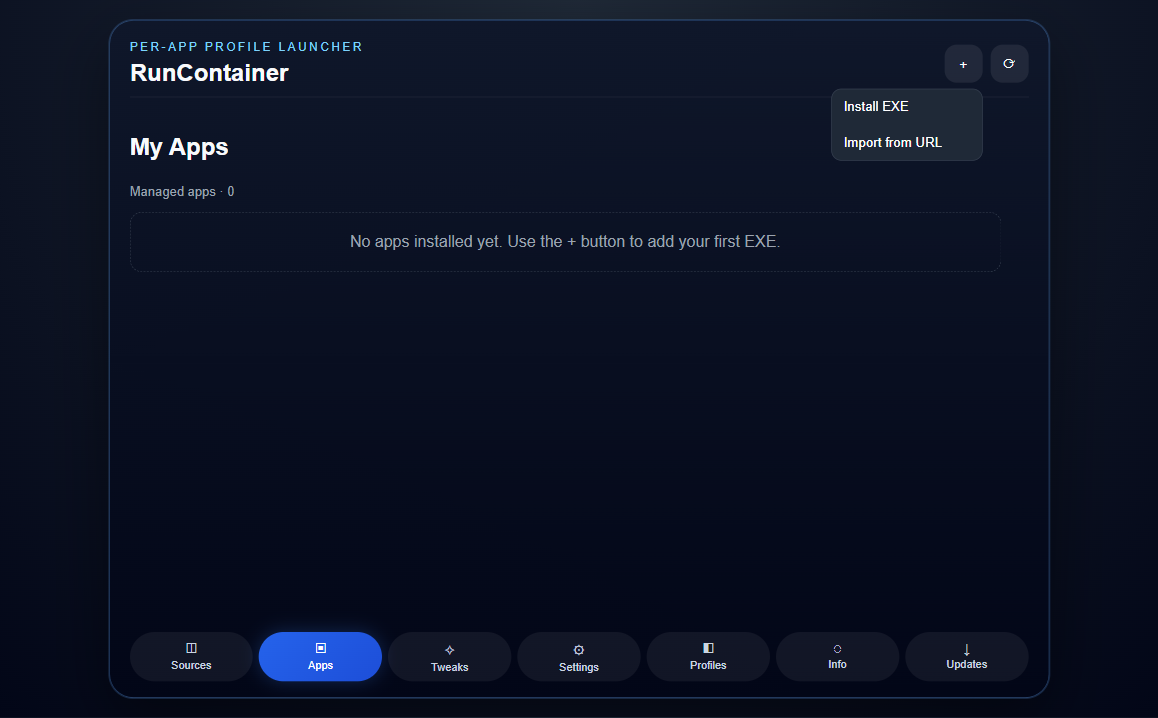
On the Apps tab, press the + button, then choose Install EXE. In the file dialog, pick the installer and confirm.
RunContainer shows the Installing into RunContainer window while it validates the file, creates the app's sandbox and registers it. When it finishes, the app appears in My Apps.
TIP
If the installer asks to restart Windows, or to install drivers or system services, the application may not be suitable. See Unsupported applications.
2. Run the application
Press Run on the app. RunContainer starts it inside its isolated environment, and the app behaves like a normal Windows application. Press Close when you're finished. → Running & stopping
3. Keep it, or clean up
- Keep it if you'll use the application again. It stays installed until you delete it.
- Reset restarts the app's environment and keeps its data. → Reset & remove
- Delete removes the app and its folder.
Delete removes data
Deleting an app also removes the files saved inside it. Copy anything you want to keep out first.
You're done
You've completed the basic workflow. Next, you could:
- Learn what each status means.
- Read What isolation is for before using RunContainer for unfamiliar software.
- Browse the FAQ.